
General information
The Guardant Protection Studio utility is the part of the Guardant SLK software licensing and protection developer tools
The utility is installed automatically as part of the Guardant SLK installation and depends on the type of operating system used: MS Windows or Linux.
Installation
To protect a .NET program in Guardant Protection Studio x86, .NET Core 3.1 runtime x86 must be installed; to protect in Guardant Protection Studio x64, .NET Core 3.1 runtime x64 must be installed.
To run a protected .NET program, .NET 6 runtime x64 must be installed.
OS MS Windows
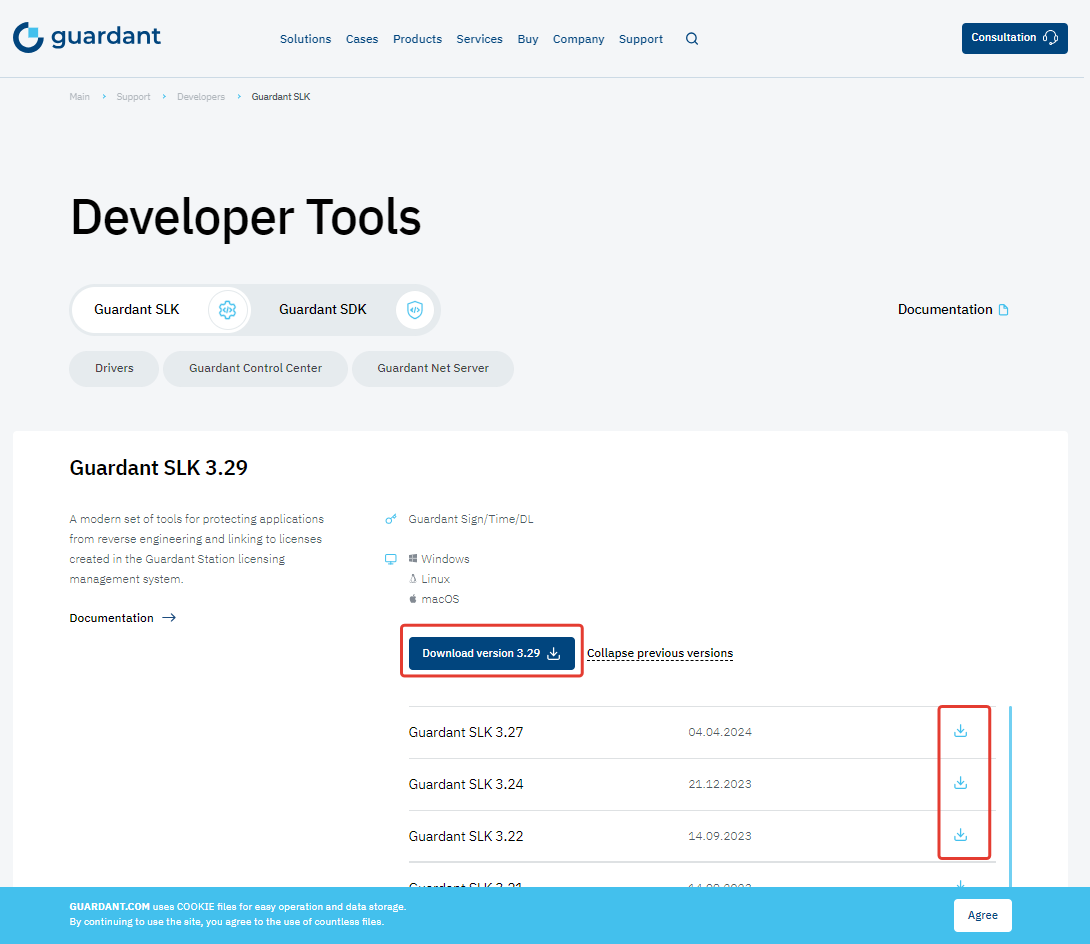
- Download the required version of Guardant SLK for OS MS Windows from https://www.guardant.com/support/developers/slk/.
Примечание
To download the latest version of Guardant SLK, after clicking the Download version [version] button, you should fill out and send the Download request form by specifying the required data and clicking the Send button.
To download an earlier version of Guardant SLK, after clicking the icon
 you need to accept the License Agreement by ticking the appropriate checkbox and clicking the Terms accepted button.
 - Launch the file GuardantSLK-[utility version].msi.
- In the Guardant Software Licensing Kit Setup:
- click Next;
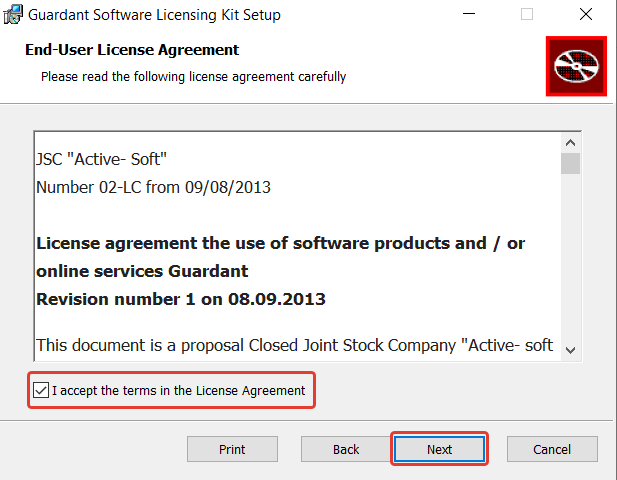
- accept the License Agreement by selecting the appropriate field and click Next;
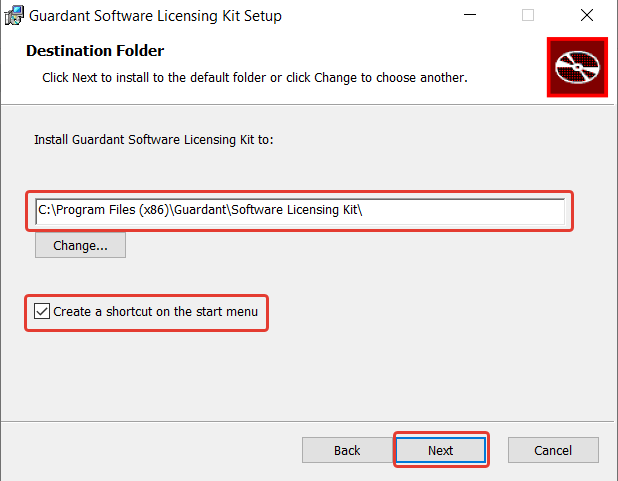
- specify the utility installation directory and the need for a shortcut in the Start menu and click Next;
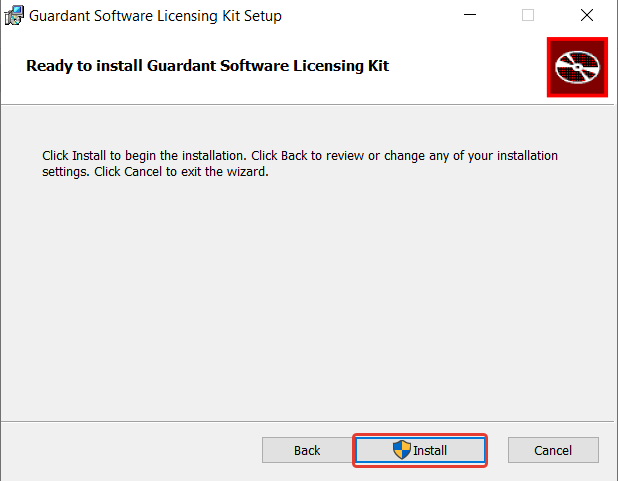
- click Install to start the installation process;
- Click Finish to complete the installation program.
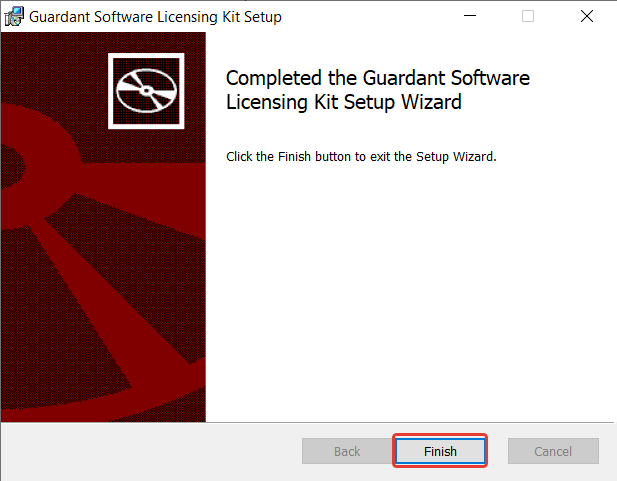
As a result, a Guardant Protection Studio shortcut  will appear on the PC desktop and in the Start menu, if this was specified during installation.
The installation of Guardant Protection Studio is complete.
OS Linux
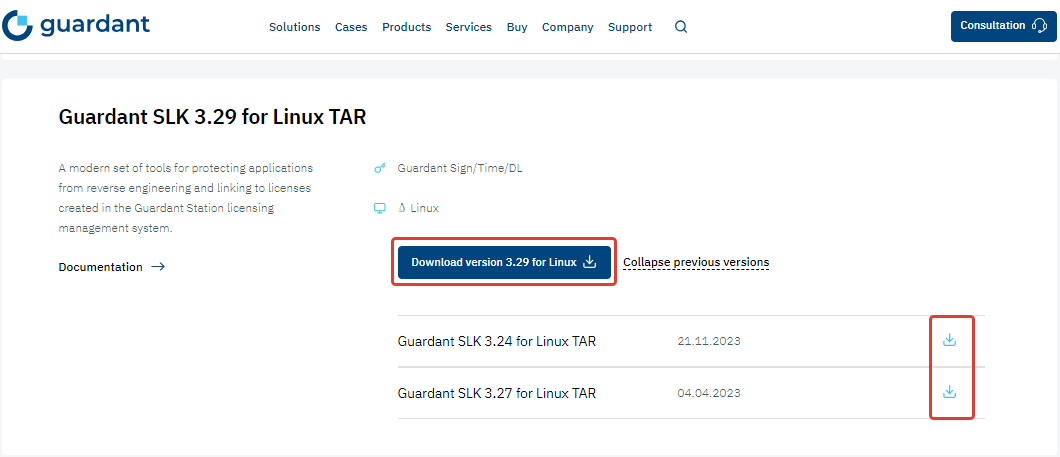
- Download the required version of Guardant SLK for OS Linux from https://www.guardant.com/support/developers/slk/.
Примечание
To download the latest version of Guardant SLK, after clicking the Download version [version] button, you should fill out and send the Download request form by specifying the required data and clicking the Send button.
To download an earlier version of Guardant SLK, after clicking the icon
you need to accept the License Agreement by ticking the appropriate checkbox and clicking the Terms accepted button. - Unpack the GuardantSLK-[utility version].tar.gz archive using the Extract Here or Extract to commands from the context menu or by entering the following command in the terminal:
tar -xvf GuardantSLK-[версия утилиты].tar.gz
The installation of Guardant Protection Studio is complete.
Launch
Before start the utility, it is necessary to register in the Guardant Station system: self-hosted or cloud.
Graphic mode
OS MS Windows
There are three ways to launch the utility.
Method 1.
Use a shortcut on the PC desktop (it is created automatically during Guardant SLK installation).
Method 2.
Примечание
Used in case when Create a shortcut on the start menu was specified during Guardant SLK installation.
- Enter Guardant Protection Studio in the Start menu search bar.
- Run the found application.
Method 3.
- Go to the directory where the Guardant SLK is installed (by default, this is C:\Program Files (x86)\Guardant\Software Licensing Kit).
- Go to the bin directory.
- Run the protection_studio.exe file.
ОС Linux
Запустить утилиту можно двумя способами.
1 способ.
- Открыть файловый менеджер.
- Перейти в директорию расположения установленного Guardant SLK.
- Перейти в каталог Software Licensing Kit/bin/x64.
- Запустить файл protection_studio.
2 способ.
- Открыть Терминал.
- Ввести последовательно команды:
cd [директория расположения Software Licensing Kit]/Software Licensing Kit/bin/x64
./protection_studio

Консольный интерфейс
Запуск и работа с утилитой в консольном интерфейсе описана в Консольный интерфейс. Интеграция с build-сервером.
Авторизация
Графический интерфейс
Авторизоваться в Guardant Protection Studio могут только пользователи, зарегистрированные в системе Guardant Station и имеющие соответствующие роли.
После запуска утилиты автоматически открывается окно авторизации Guardant Protection Studio [версия утилиты].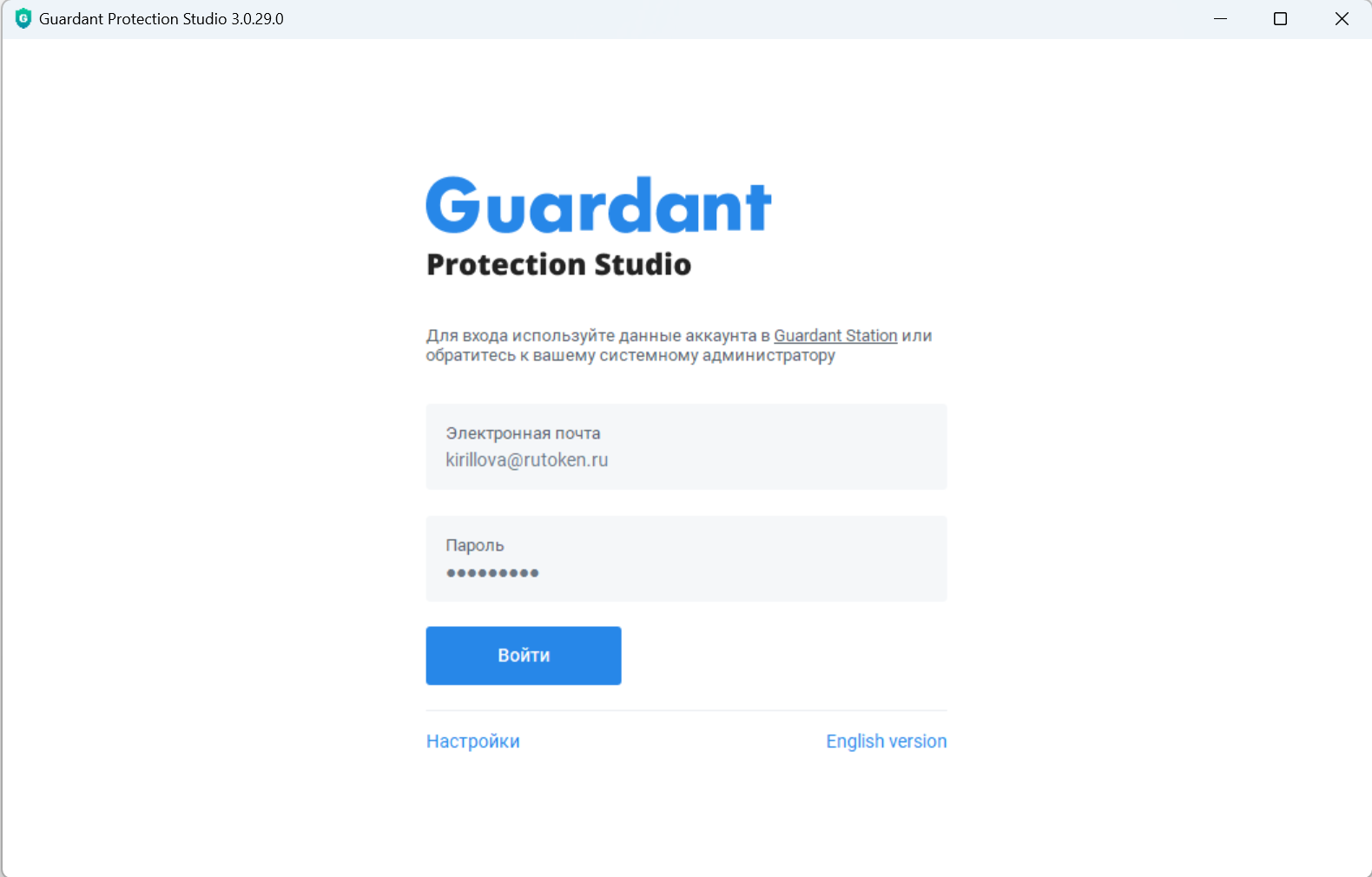
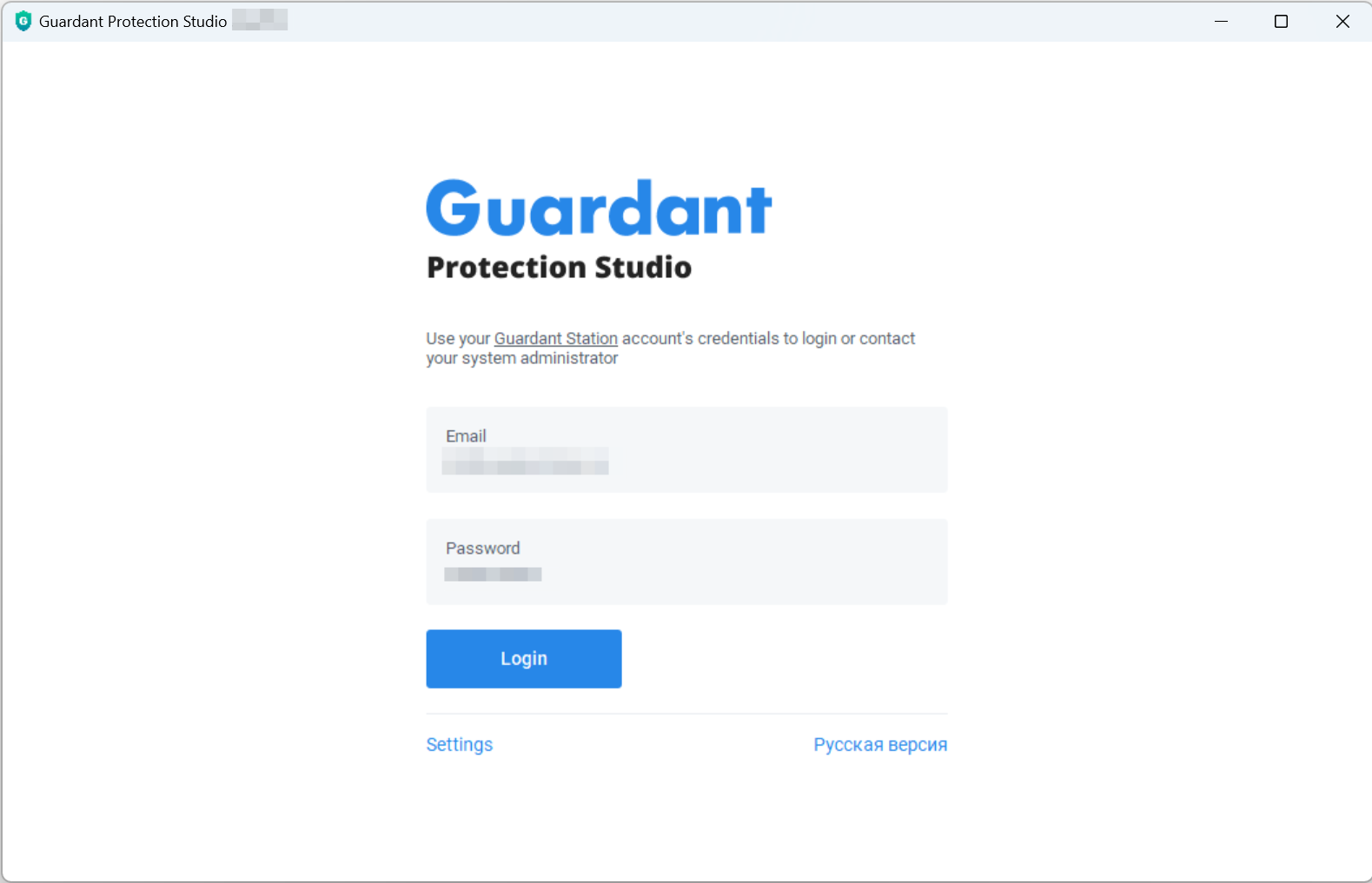
Для успешной авторизации необходимо:
- Нажать Настройки (Settings) и проверить, что в поле Адрес Guardant Station (Guardant Station address) введен корректный адрес сервера системы Guardant Station.
Если была выполнена регистрация в облачной версии системы Guardant Station, в поле Guardant Station address должен быть указан адрес https://station.guardant.ru/.
- Нажать Назад (Back).
- Ввести в соответствующие поля адрес электронной почты и пароль, которые использовались при регистрации в системе Guardant Station.
- Нажать Войти (Login).
Авторизация завершена.
По умолчанию после авторизации утилита работает в стандартном режиме.
Для включения режима тестирования необходимо перевести переключатель Тестирование (Demo mode) в активное положение  .
.
Консольный интерфейс
В консольном интерфейсе утилиты не требуется проводить авторизацию.
